
Social Media Publishing Tool, Network by Network
The composer shows a simplified preview of the post for each of the nine networks, in a phone-style frame, before you schedule it.
A social media scheduler holds a post you have finished and publishes it at the date and time you choose, so nobody has to be online when it goes out.
The app opens on a chat with Outfeed's assistant. Tell it what to post and it writes the draft and opens it in the composer for you to check; it schedules or publishes only after you confirm on a card in the chat.
Starter includes a 3-day free trial with 100 AI credits. Card required. Pro and Agency are billed from the first day.
A social media scheduler is software that holds a post you have written and publishes it to one or more networks at the date and time you pick. In Outfeed: You pick an exact date and time (in chat or the composer) for one post that can target several accounts across networks. Outfeed stores it and a timed trigger publishes it at that moment through each network's API. Outfeed does not hand posts to the networks' own schedulers.
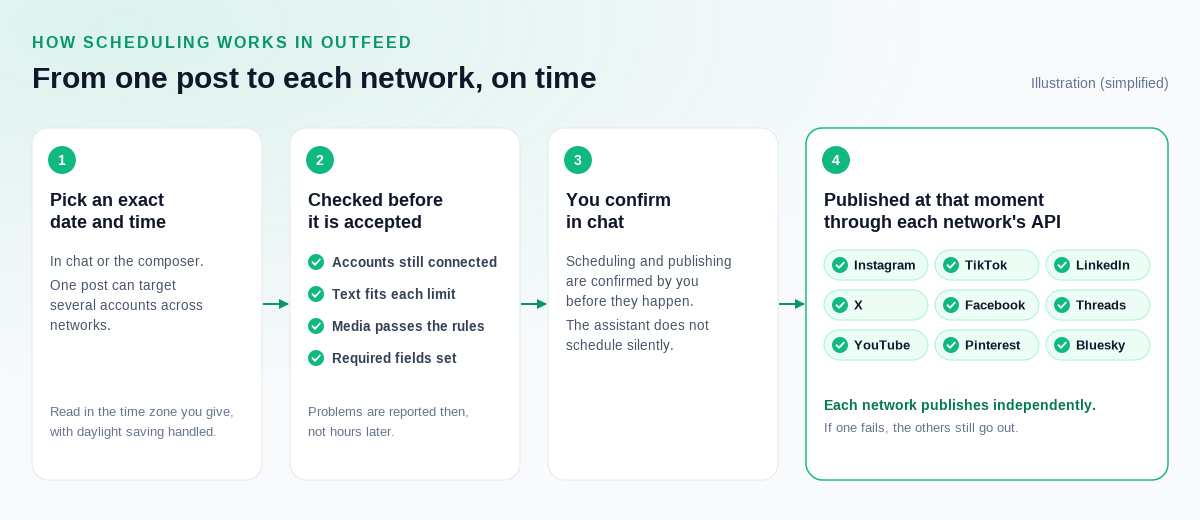
The assistant writes the post text, can give each network its own version, writes the YouTube title and writes alt text for your images. Before a post is accepted into the schedule, Outfeed runs checks on accounts, text limits and media.
Scheduling is one part of the job. For the rest (planning, writing, community and reporting), read where scheduling fits in social media management.
One post can carry different text per network: write a main version and override it for specific networks.
In chat, scheduling and publishing are confirmed by you before they happen; the assistant does not schedule silently.
Social media scheduling platforms differ most in which networks they reach and which formats they can publish there, so check this before anything else. The table gives one line per network on what Outfeed publishes there. The text limits, how each account connects and the formats it doesn't send are on what Outfeed publishes on each network.
| Network | What Outfeed publishes there | Native scheduling guide |
|---|---|---|
| Feed posts: a single image, a single video (published as a Reel), or a carousel of up to 10 images and/or videos. Every Instagram post needs at least one image or video. | How to schedule Instagram posts | |
| Page feed posts: text only, text with one photo, or text with one video. | How to schedule Facebook posts | |
| TikTok | A video post, or a photo post of up to 35 JPEG or WebP images, sent through TikTok's Content Posting API: posted to TikTok directly, or sent to your TikTok drafts for you to finish and post in the TikTok app. Posts currently publish as private (visible only to the connected account), the only privacy level TikTok allows the Outfeed app for now. For now TikTok also accepts a direct post only to a private TikTok account: it refuses a direct post to a public TikTok account, so use Send to TikTok drafts for a public account instead. | How to schedule TikTok posts |
| Posts on your personal profile: text only, text with one image, or text with one video. | How to schedule LinkedIn posts | |
| X (Twitter) | Text-only posts up to 280 characters as X counts them (links count 23, emoji and CJK count 2). Images and video cannot be sent to X yet. | How to schedule tweets |
| Threads | Text posts, a single image or video, or a carousel of up to 20 images and/or videos. | How to schedule Threads posts |
| YouTube | A video upload with a title (up to 100 characters), your text as the description, a Public, Unlisted or Private setting, and your answer to YouTube's made-for-kids question. | How to schedule YouTube videos |
| Image Pins to a board you pick. Video Pins are not supported yet. | How to post on Pinterest | |
| Bluesky | Text posts up to 300 characters, with up to 4 images or one video. Links and @mentions in the text are made clickable automatically. | How to schedule Bluesky posts |
Times are read in the time zone you give (any IANA zone, such as America/Toronto), with daylight saving handled. The time must be in the future. If one network fails at the scheduled time, the others still go out; the retries and the partial-post status are set out under what happens at publish time.
The networks also set limits that any scheduler has to respect. Threads, for example, limits a profile to 250 posts published through its API in a rolling 24-hour period and counts a carousel as one post, and Meta tells apps that schedule posts to enforce that limit themselves. Checked against Meta for Developers: Threads API overview (rate limiting)
The calendar shows your posts by month, week or day, and you can filter it by account. Open a post in the calendar to edit a draft or scheduled post, move a scheduled post to a new time, delete it, or retry the networks that failed.
A scheduled post can be edited (text, media, accounts, time) until it starts publishing. Changing the time replaces the old trigger.
A scheduled post can be cancelled; it stays in Outfeed as cancelled and can be scheduled again later.
A scheduled post can be published immediately instead; that cancels its scheduled time.
Check these gaps before you choose a plan. No iOS or Android app and no browser extension. Posts are not dragged around the calendar; to move one, open it and pick a new time. The formats Outfeed doesn't send on each network, TikTok's posting limits included, are listed under what Outfeed can't publish on each network.
There is no automatic posting queue or best-time slotting: you (or the assistant, on your instruction) choose the time.
Outfeed facts on this page were checked against the Outfeed app code on 2026-11-21.
Not always: if you post to one network, its built-in scheduler may be all you need. A scheduler for social media earns its place when the same post goes to several networks, when you want one calendar for all of them, or when you want to schedule a network that has no scheduler of its own. The table shows what each network's own scheduler covers, with its source; what Outfeed publishes on each network is in the network table above. For the steps on each network, read how to schedule posts on each network natively.
| Where | Native scheduler? | How far ahead | Source |
|---|---|---|---|
| Meta Business Suite (desktop and mobile app) for an Instagram account | Yes | Not stated by the platform Not verified | Meta Business Help Center: Create and manage posts in Meta Business Suite on desktop |
| Facebook Page, via Meta Business Suite (desktop) | Yes | 29 days Shortest lead time: 20 minutes | Facebook Help Center: Schedule a post and manage scheduled posts for your Facebook Page |
| TikTok on desktop web (the upload page / TikTok Studio in a browser) | Yes | 10 days Shortest lead time: 15 minutes | TikTok Help Center: Schedule video |
| LinkedIn personal profile (homepage 'Start a post') | Yes | 3 months Shortest lead time: 10 minutes | LinkedIn Help: Schedule posts |
| x.com composer in a desktop browser Widely reported | Yes | Not stated by the platform Not verified | X Help Center: How to Post (no scheduling mentioned) |
| YouTube Studio (desktop) and the YouTube app: videos | Yes | Not stated by the platform Not verified | YouTube Help: Schedule video publish time |
| Pinterest business account (web Pin builder and app) | Yes | 30 days | Pinterest Business Help: Schedule Pins |
| Threads composer (app) | Yes | Not stated by the platform Not verified | Threads official accounts: @threads launch post (2025-01-23, quoted in @creators 2025-02-10) and @threads test post (2024-12-17) |
| Bluesky app and bsky.app web | No | No native scheduler | Bluesky official repository (bluesky-social/social-app): feature request #4810 'Scheduled Posts' — Open |
Widely reported: observable and widely reported, but no page from the platform says it. · Not verified: the platform does not publish it, or it could not be confirmed.
One practical difference, with Instagram as the example: Outfeed holds the post and publishes it through Instagram's API at the time you chose; it does not appear in Instagram's or Meta Business Suite's own scheduled list.
You can connect more than one account on the same network, for example several Instagram accounts, up to your plan's account limit. Accounts can be put in named groups, by client or brand, and a post can go to a whole group by its name.
$29 per month, billed monthly
$59 per month, billed monthly
$149 per seat/month, billed monthly
Custom
Starter and Pro are flat monthly prices, not billed per seat. Agency is billed per seat. Enterprise is custom.
Agency's 250 accounts is an organization-wide cap; it does not grow with seats.
Starter includes a 3-day free trial with 100 AI credits. Card required. Pro and Agency are billed from the first day.
Read the full Outfeed AI pricing breakdown or compare plans on the Outfeed AI homepage.
The established social media schedulers have strengths of their own and bill in different units, so compare them on the jobs you need done. The points below come from each vendor's own pages.
Prices verified on buffer.com/pricing, hootsuite.com/plans and sproutsocial.com/pricing.
For the full picture, see schedulers compared side by side, other social media management tools, grouped by job, or the head-to-head pages: Outfeed AI vs Buffer, Outfeed AI vs Hootsuite and Outfeed AI vs Later.
Each feature has its own page. Start with the one that matches the job you would hire a social media posting tool for.
The composer shows a simplified preview of the post for each of the nine networks, in a phone-style frame, before you schedule it.
Any post with exactly one video is published as a Reel.
Bulk scheduling lays a batch of posts out on a pattern (daily, weekdays, weekly or chosen days, at a set time in your time zone). It is not on Starter; it is on Pro, Agency and Enterprise.
MCP and API access come with every plan.
No. There is no free plan. Starter includes a 3-day free trial with 100 AI credits. Card required. Pro and Agency are billed from the first day.
No. There is no automatic posting queue or best-time slotting: you (or the assistant, on your instruction) choose the time.
Yes. A scheduled post can be edited (text, media, accounts, time) until it starts publishing. Changing the time replaces the old trigger. A scheduled post can be cancelled; it stays in Outfeed as cancelled and can be scheduled again later. A scheduled post can be published immediately instead; that cancels its scheduled time.
Yes. On Instagram: Feed posts: a single image, a single video (published as a Reel), or a carousel of up to 10 images and/or videos. Every Instagram post needs at least one image or video. On Facebook: Page feed posts: text only, text with one photo, or text with one video.
Times are read in the time zone you give (any IANA zone, such as America/Toronto), with daylight saving handled. The time must be in the future.
Step by step, with each network's own scheduler.
Starter includes a 3-day free trial with 100 AI credits. Card required. Pro and Agency are billed from the first day.