
YouTube scheduler

YouTube Scheduler: Upload Videos at a Set Time

A YouTube scheduler, or YouTube video scheduler, lets you prepare an upload once, with its title, description and privacy setting, and have the video go live on your channel at a date and time you pick.

Outfeed uploads the video at the time you chose. It does not upload early as Private with a YouTube publish time, so the video will not sit in YouTube Studio as 'Scheduled'.

Starter includes a 3-day free trial with 100 AI credits. Card required. Pro and Agency are billed from the first day.

How does the YouTube scheduler work in Outfeed?

You pick an exact date and time (in chat or the composer) for one post that can target several accounts across networks. Outfeed stores it and a timed trigger publishes it at that moment through each network's API. The other networks are on Outfeed's social media scheduler page. For YouTube it comes down to four steps:

  1. Connect the channel. Connected with Google sign-in, with upload and read-only YouTube permissions.
  2. Write the title and description. The assistant writes the post text, can give each network its own version, writes the YouTube title and writes alt text for your images. More on the assistant that writes the title and description.
  3. Set privacy and the made-for-kids answer. You set the title and privacy (Public, Unlisted or Private; Public is preselected) in the composer, and must answer whether the video is made for kids; Outfeed never answers that for you and will not schedule the video without it.
  4. Pick the time and confirm. Times are read in the time zone you give (any IANA zone, such as America/Toronto), with daylight saving handled. The time must be in the future. In chat, scheduling and publishing are confirmed by you before they happen; the assistant does not schedule silently.

From a phone? Outfeed runs in your web browser at app.outfeed.ai. No iOS or Android app and no browser extension.

What does Outfeed send to YouTube with each video?

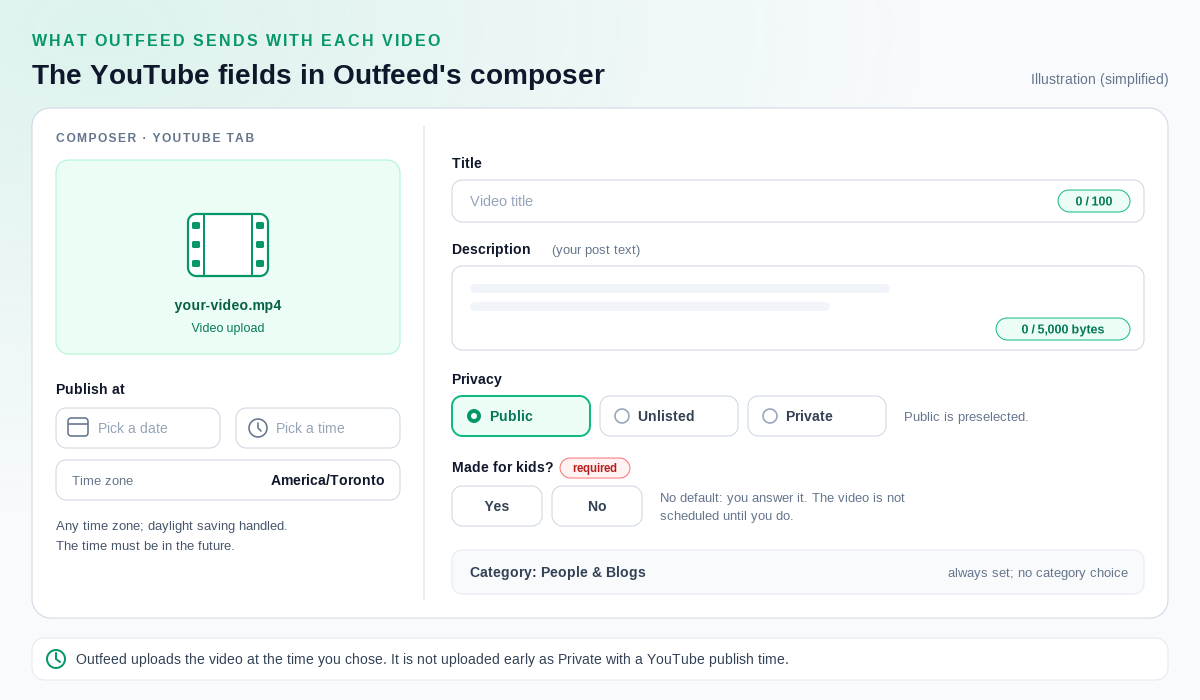
A video upload with a title (up to 100 characters), your text as the description, a Public, Unlisted or Private setting, and your answer to YouTube's made-for-kids question. The category is always set to People & Blogs; there is no category choice.

Simplified illustration of Outfeed's composer fields for a YouTube upload: title with a 100-character limit, description, privacy choice of Public, Unlisted or Private, and a required made-for-kids answer
Illustration of Outfeed's YouTube fields in the composer (simplified).

Description checked against 5,000 bytes (UTF-8) before scheduling; the title is limited to 100 characters. As you type, the composer counts the text against the selected network's limit (in bytes for a YouTube description). YouTube sets the rules for file length, size and aspect ratio: check the export against YouTube video size and format rules before you upload.

YouTube

A video upload with a title (up to 100 characters), your text as the description, a Public, Unlisted or Private setting, and your answer to YouTube's made-for-kids question.

  • Supported: Video upload.Uploaded to the channel at the chosen time. You set the title and privacy (Public, Unlisted or Private; Public is preselected) in the composer, and must answer whether the video is made for kids; Outfeed never answers that for you and will not schedule the video without it.
  • Not supported: Shorts.There is no Shorts option. Every video goes through the same upload with the same fields; Outfeed does not mark, detect or format anything as a Short. How YouTube classifies a vertical video is up to YouTube.
  • Not supported: Community posts / images.Not published. YouTube in Outfeed takes video only.
Text limit
Description checked against 5,000 bytes (UTF-8) before scheduling; the title is limited to 100 characters.
How it connects
Connected with Google sign-in, with upload and read-only YouTube permissions.
At the scheduled time
Outfeed uploads the video at the time you chose. It does not upload early as Private with a YouTube publish time, so the video will not sit in YouTube Studio as 'Scheduled'.
The category is always set to People & Blogs; there is no category choice.

Will the video show as Scheduled in YouTube Studio?

No. A video scheduled in YouTube itself is uploaded ahead and waits under YouTube Studio > Content (left menu) > select the video > Visibility. Outfeed works differently:

In Outfeed: A scheduled post can be edited (text, media, accounts, time) until it starts publishing. Changing the time replaces the old trigger.

YouTube scheduling in YouTube Studio or Outfeed: which fits?

YouTube Studio's own scheduler fits a channel you run on its own; a scheduler like Outfeed fits when the same week's posts also go to other networks. YouTube Studio's scheduler is part of the upload itself, so there is nothing extra to connect. A cross-network scheduler is closer to a YouTube content planner that sits alongside your other networks. The table puts the two side by side.

YouTube Studio's scheduler compared with Outfeed's YouTube scheduling
What you need YouTube Studio Outfeed
Date, time and time zone You choose the date, time and time zone. YouTube publishes no maximum for how far ahead. Times are read in the time zone you give (any IANA zone, such as America/Toronto), with daylight saving handled. The time must be in the future.
Where the video waits Uploaded ahead and listed in YouTube Studio > Content (left menu) > select the video > Visibility. Outfeed uploads the video at the time you chose. It does not upload early as Private with a YouTube publish time, so the video will not sit in YouTube Studio as 'Scheduled'.
Changing the time Yes: Content > the video > Visibility. Keep it Private and click EDIT DRAFT to choose a new time, or set it to Public to publish now. A scheduled post can be edited (text, media, accounts, time) until it starts publishing. Changing the time replaces the old trigger.
Shorts Shorts uploaded as files (widely reported) There is no Shorts option.
Several videos at once Up to 15 videos per upload batch in YouTube Studio Bulk scheduling lays a batch of posts out on a pattern (daily, weekdays, weekly or chosen days, at a set time in your time zone). It is not on Starter; it is on Pro, Agency and Enterprise.
Other networks in the same post YouTube only You pick an exact date and time (in chat or the composer) for one post that can target several accounts across networks.

YouTube Studio column: YouTube Help: Schedule video publish time and YouTube Help: Upload YouTube videos (Android) — Shorts classification, verified 30 September 2026.

Does Outfeed handle Shorts, thumbnails and playlists?

No. The notes below give the answer for each. On Shorts, YouTube decides what counts as one. According to YouTube Help: Upload YouTube videos (Android) — Shorts classification, a video of 3 minutes or less with a square or vertical aspect ratio is uploaded as a Short.

If a video needs a Short-specific setup, a custom thumbnail or a playlist on day one, schedule it in YouTube Studio instead.

What happens if an upload fails?

Temporary failures (rate limits, network errors, the network being down) are retried automatically after about 1, 5 and 15 minutes, at most 4 attempts in all. Login and content problems are not retried; you are told what to fix. Before a retry that could double-post, Outfeed first checks whether the post already went live.

For a failed or partly published post, Retry in the web app publishes again to the networks that failed only; networks that already published are skipped.

  • Checked before it is accepted

    Before a post is accepted into the schedule, Outfeed checks that every account is still connected, the text fits each network's limit, the media passes each network's rules, and required fields (YouTube's made-for-kids answer) are set, along with TikTok's privacy setting for a post going straight to TikTok. Problems are reported then, not hours later.

  • Each network on its own

    Each network is published independently. If one fails, the others still go out and the post is marked partial, with the failing network named.

What doesn't the YouTube scheduler do?

Analytics and channel settings stay in YouTube Studio. These notes, and the list after them, say what Outfeed leaves out:

No automatic queue or best-time slots

There is no automatic posting queue or best-time slotting: you (or the assistant, on your instruction) choose the time.

YouTube

  • No Shorts-specific handling.
  • No YouTube-side scheduled publish time (Outfeed publishes at the time itself).
  • No pinned comment or any comment: Outfeed does not have YouTube's comment permission.
  • No custom thumbnail, tags, playlist or category selection.

Outfeed facts on this page were checked against the Outfeed app code on 2026-11-21.

Which plan do you need to schedule YouTube videos?

Starter

$29 per month, billed monthly

Connected accounts
10
Posts per month
100
Team members
1
Bulk scheduling
No
X posts per month
75

Pro

$59 per month, billed monthly

Connected accounts
25
Posts per month
Unlimited
Team members
3
Bulk scheduling
Yes
X posts per month
150

Agency

$149 per seat/month, billed monthly

Connected accounts
250
Posts per month
Unlimited
Team members
Unlimited
Bulk scheduling
Yes
X posts per month
350

Enterprise

Custom

Connected accounts
Unlimited
Posts per month
Unlimited
Team members
Unlimited
Bulk scheduling
Yes
X posts per month
Unlimited

Starter and Pro are flat monthly prices, not billed per seat. Agency is billed per seat. Enterprise is custom.

Agency's 250 accounts is an organization-wide cap; it does not grow with seats.

Starter includes a 3-day free trial with 100 AI credits. Card required. Pro and Agency are billed from the first day.

Read the full Outfeed AI pricing breakdown or compare plans on the Outfeed AI homepage.

YouTube scheduler FAQ

Will my video show as Scheduled in YouTube Studio?

No. Outfeed uploads the video at the time you chose. It does not upload early as Private with a YouTube publish time, so the video will not sit in YouTube Studio as 'Scheduled'.

Can I schedule YouTube Shorts with Outfeed?

No. There is no Shorts option. Every video goes through the same upload with the same fields; Outfeed does not mark, detect or format anything as a Short. How YouTube classifies a vertical video is up to YouTube.

How to schedule Shorts in YouTube Studio

Which privacy settings can I choose?

You set the title and privacy (Public, Unlisted or Private; Public is preselected) in the composer, and must answer whether the video is made for kids; Outfeed never answers that for you and will not schedule the video without it.

Can you schedule YouTube videos for free?

YouTube Studio has its own scheduler: any channel that can upload can schedule a video there, and you choose the date, time and time zone, according to YouTube Help: Schedule video publish time. As for Outfeed AI: No. There is no free plan. Starter includes a 3-day free trial with 100 AI credits. Card required. Pro and Agency are billed from the first day.

Does Outfeed pick the best time to upload automatically?

No. There is no automatic posting queue or best-time slotting: you (or the assistant, on your instruction) choose the time.

When to upload on YouTube

Can I schedule a video to multiple YouTube channels?

Yes, one channel per connected account. You can connect more than one account on the same network, for example several Instagram accounts, up to your plan's account limit.

YouTube guides and free tools

Schedule your next YouTube upload with Outfeed AI

Starter includes a 3-day free trial with 100 AI credits. Card required. Pro and Agency are billed from the first day.