
YouTube Video Size 2026: Resolutions, Ratios, Limits
Last verified: 27 September 2026
Upload at 1920 x 1080 pixels (1080p) in a 16:9 frame and you have the standard YouTube video size for 2026. YouTube’s resolution ladder runs from 240p to 8K in that same shape, and a verified account can upload a file of up to 256 GB or 12 h of running time, whichever limit comes first.
The channel art around the video has its own sizes: a 3840 x 2160-pixel thumbnail recommendation, a banner with a safe area in its middle, and a profile picture that renders small. Those follow the video specs below, each with the YouTube Help page it comes from.
What Is the Correct YouTube Video Size in 2026?
The correct YouTube video size is 1920 x 1080 pixels at a 16:9 aspect ratio. YouTube Help calls 16:9 “the standard aspect ratio for YouTube on a computer,” and 1080p is one step of its eight-step resolution table. Any size on that table fills the standard player without padding, and 1080p is the default this guide builds on.
| Placement | Upload size (px) | Minimum size (px) | Aspect ratio | Displays at (px) | Safe zone | Max file size | Source |
|---|---|---|---|---|---|---|---|
| Standard video | 1920 x 1080 Ladder: 426 x 240 to 7680 x 4320 | Not recorded | 16:9 | Not recorded | Not recorded | 256 GB '256 GB or 12 hours, whichever is less.' | YouTube Help: Video resolution & aspect ratios |
| Video thumbnail | 3840 x 2160 | 640 x 360 Widely reported | 16:9 | Not recorded | Not recorded | 50 MB Desktop upload. From mobile: 2 MB (10 MB for podcasts). | YouTube Help: Add custom thumbnails on YouTube |
| Channel banner | 2560 x 1440 | 2048 x 1152 | 16:9 | Not recorded | 1235 x 338 px on 2048 x 1152, centred (horizontally and vertically) — YouTube states the size, not the position Widely reported | 6 MB | YouTube Help: Manage your channel branding |
| Channel profile picture | Not recorded | Not recorded | 1:1 | Desktop 98 x 98 'Image that renders at 98 X 98 px.' | Not recorded | 15 MB | YouTube Help: Manage your channel branding |
| Video watermark | Not recorded | 150 x 150 | 1:1 | Not recorded | Not recorded | 1 MB 'less than 1 MB' | YouTube Help: Manage your channel branding |
Widely reported: the platform does not publish it.
Resize a thumbnail or banner image to the exact spec with our free image resizer. It’s free and needs no account.
How to read the table: cells without a badge come straight from YouTube Help. Two carry a “Widely reported” badge. The thumbnail’s minimum size does because YouTube publishes only the minimum width, 640 pixels, and the height is derived from the 16:9 shape. The banner’s safe area does because YouTube states its size but not its centred position. The video row’s upload cell shows the whole resolution ladder, which the next section lists step by step.
Table of Contents
- What Is the Correct YouTube Video Size in 2026?
- What Resolutions Does YouTube Support, From 240p to 8K?
- What Happens If Your Video Isn’t 16:9?
- How Big and How Long Can a YouTube Upload Be?
- What Size Should a YouTube Thumbnail Be?
- What Size Are the YouTube Channel Banner, Profile Picture and Watermark?
- How Is a YouTube Short Different From a Standard Upload?
- How Do You Export One Video for YouTube, Reels and TikTok?
- How Outfeed Handles YouTube Uploads
- Frequently Asked Questions
What Resolutions Does YouTube Support, From 240p to 8K?
YouTube’s resolution table lists eight sizes, all 16:9, from 426 x 240 (240p) up to 7680 x 4320 (4320p, or 8K). Every step shares one shape, so a higher step adds detail without changing the frame. Pick the step your footage was actually shot or edited at.
| Resolution | Pixels (width x height) | Also called |
|---|---|---|
| 4320p | 7680 x 4320 | 8K |
| 2160p | 3840 x 2160 | 4K |
| 1440p | 2560 x 1440 | 2K |
| 1080p | 1920 x 1080 | HD |
| 720p | 1280 x 720 | HD |
| 480p | 854 x 480 | SD |
| 360p | 640 x 360 | SD |
| 240p | 426 x 240 | SD |
Source: YouTube Help: Video resolution and aspect ratios, verified 27 September 2026.
Exporting above your source resolution doesn’t add detail. A 1080p recording upscaled to 4K is still 1080p footage, just in a bigger file that takes longer to upload. Where 4K earns its place is a genuine 4K recording, or a landscape master you plan to crop into vertical versions later (the export section below shows why).
Why does a new upload look soft at first?
Because YouTube processes a low-quality version first. According to YouTube Help’s page on low video quality after upload, a new video “will initially be processed in low quality,” and higher-quality versions “such as 4K or 1080p, can take more time to process.” Give a high-resolution upload time to finish before you judge it, or before you share the link.
Some creators also export 1080p footage at 1440p and report sharper playback afterwards. YouTube doesn’t document that effect, so treat it as a widely reported creator practice to test on your own channel, not as a spec.
What Happens If Your Video Isn’t 16:9?
It still plays, because the YouTube player adapts to your video’s shape. On a computer, YouTube may add padding beside a 9:16 vertical video, and that padding is “white by default, and dark gray when Dark theme is turned on.” What YouTube asks you not to do is add black bars yourself: it says padding “interferes with YouTube’s ability to change the player dynamically to your video size and the viewer’s device.”
So export at the shape you shot, with nothing baked in. A landscape video letterboxed inside a vertical file, or a vertical clip padded out to 16:9, both spend pixels on bars the player would have handled for you. Square and vertical uploads have one more consequence, covered in the Shorts section below.
How Big and How Long Can a YouTube Upload Be?
By default you can upload videos up to 15 minutes long; a verified account can upload up to 256 GB or 12 h, whichever is less. Both limits come from YouTube Help’s page on uploading videos longer than 15 minutes, and YouTube’s Data API documents the same ceiling for uploads made through it.
If YouTube Studio stops you at 15 minutes, the usual cause is an unverified account; YouTube Help’s troubleshooting also covers verified accounts that still hit the limit, where the fix can be to upload the video again. YouTube states it plainly: “Verified accounts can upload videos longer than 15 minutes.” Verification also unlocks custom thumbnails, covered next.
Some older guides still give a smaller maximum file size. 256 GB is the figure on YouTube Help today. YouTube also notes that it has “changed the limits on uploads in the past,” which is why you’ll occasionally find older videos that run longer than 12 h.
What Size Should a YouTube Thumbnail Be?
YouTube Help recommends a 3840 x 2160 pixel thumbnail at 16:9, with a minimum width of 640 pixels. Accepted formats are JPG and PNG, and the size cap depends on the device: 2 MB when you upload from the mobile app, 50 MB from a computer. Adding any custom thumbnail needs a verified account.
The figure many guides still print, 1280 x 720 pixels under 2 MB, is not so much wrong as misfiled. It is the thumbnail spec in Google Ads’ video ad specs, which applies to ad thumbnails only. For a video on your own channel, YouTube’s custom thumbnail guidance is the one to follow, and it now recommends 3840 x 2160.
Design at full size, then check the result shrunk down: most viewers meet a thumbnail as a small card in search, suggestions or a phone feed, so the headline text has to survive at that scale.
What Size Are the YouTube Channel Banner, Profile Picture and Watermark?
Upload the channel banner at 2560 x 1440 pixels with its text inside a 1235 x 338 pixel safe area, use a square profile picture (it renders at 98 x 98 pixels), and make the watermark at least 150 x 150 pixels. All three specs come from YouTube Help’s channel branding page, linked in the table above.
Channel banner
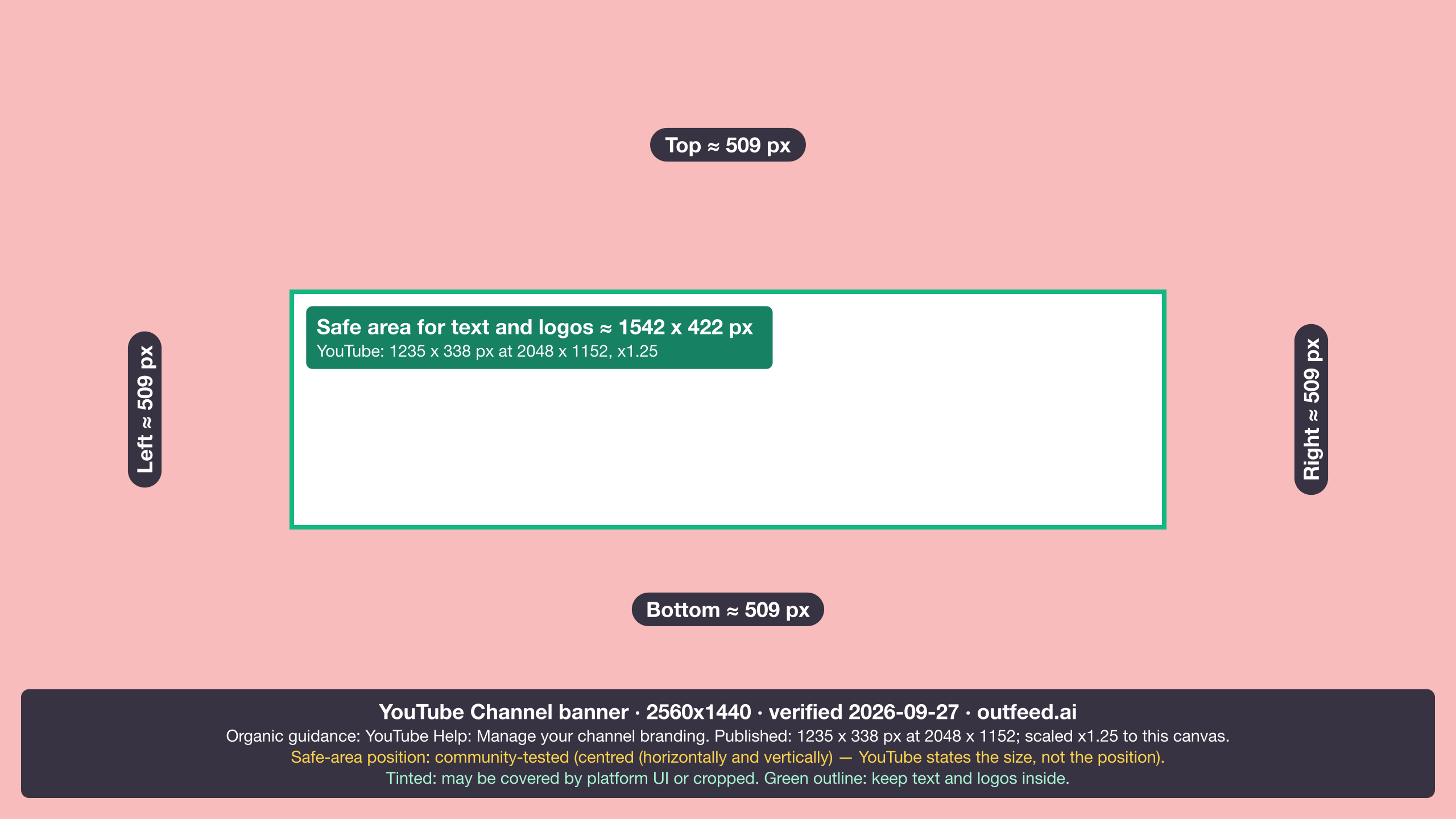
The banner’s recommended size is 2560 x 1440 pixels, “especially for TV.” The minimum is 2048 x 1152 pixels at 16:9, and the file must be 6 MB or smaller. Screens crop the banner differently, which is why YouTube defines a safe area for text and logos.
That safe area is 1235 x 338 pixels “at the minimum dimension,” so it is measured on a 2048 x 1152 canvas. YouTube states its size but not its position; it sits centred horizontally and vertically, which is how YouTube Studio’s preview and banner templates place it. On a 2560 x 1440 upload, scale it up by 1.25, the same factor as the canvas.
Download the YouTube banner safe-zone overlay as a PNG and lay it over your design to check the centre before you upload.
Profile picture
YouTube publishes the rendered size, not an upload size: the channel profile picture renders at 98 x 98 pixels. It accepts JPG, GIF (not animated), BMP and PNG files up to 15 MB, and YouTube recommends a square or round image. The 800 x 800 upload size you’ll see quoted widely is a convention, not a YouTube figure. Any square image comfortably larger than the rendered size works, and a larger one stays crisp on high-density screens.
Video watermark
The watermark is the small branding image YouTube overlays on your videos. It must be square (1:1), at least 150 x 150 pixels and less than 1 MB. YouTube doesn’t show it on videos made for kids.
How Is a YouTube Short Different From a Standard Upload?
YouTube decides by shape and running time: a square or vertical upload of up to 3 min becomes a Short automatically, with no setting to switch. Everything above applies to landscape, long-form video. For the vertical frame, the Shorts thumbnail, its safe zone and the length rule, see our guide to YouTube Shorts dimensions and length limit.
How Do You Export One Video for YouTube, Reels and TikTok?
Keep a 16:9 master at 1920 x 1080 for YouTube, and cut a separate 9:16 version for vertical feeds instead of uploading the landscape file everywhere. Instagram Reels and TikTok both use the 9:16 frame, so one vertical cut can serve both.
The crop math decides how sharp that vertical cut looks:
- From a 1920 x 1080 master, the tallest 9:16 window is about 608 x 1080 pixels, so it has to be scaled up roughly 1.8 times to fill a 1080 x 1920 frame.
- From a 3840 x 2160 (4K) master, the same window is 1215 x 2160 pixels and scales down to 1080 x 1920 instead, keeping its detail.
- A square crop keeps the full height from either master: 1080 x 1080 from 1080p, 2160 x 2160 from 4K.
So if you already know a video will be cut vertically, record in 4K even when the YouTube upload itself is 1080p, and reframe the vertical version around the subject rather than cropping the centre blindly. The aspect ratio calculator converts 16:9 or 9:16 to pixels at any width, and works backwards from a size you already have. For the vertical side, the TikTok video size guide covers TikTok’s frame and its safe zone.
Before you upload, sort out the words as well as the pixels. Draft title options with the YouTube title generator, check the title isn’t cut off with the YouTube title checker, and build a tag list with the free YouTube tag generator.
How Outfeed Handles YouTube Uploads
Outfeed AI is a chat-first social media manager. You describe the post, attach the file, and the assistant drafts and schedules it for any of the nine platforms it publishes to, with a per-platform preview before anything goes live. For YouTube, Outfeed’s publisher enforces YouTube’s own limits in code:
- It blocks an upload over 256 GB or 12 h, and resumes an interrupted upload.
- It caps titles at 100 characters and swaps the two characters YouTube refuses,
<and>, for look-alikes. - It counts descriptions in UTF-8 bytes, the unit YouTube’s API uses, and cuts at 5,000 bytes on a character boundary.
Once the file and the text are right, the remaining question is timing, which our guide to the best time to post on YouTube covers. Schedule your next YouTube video with Outfeed AI.
For the equivalent specs on the other eight platforms, see every platform’s image and video sizes in one table.
Frequently Asked Questions
What is the best video size for YouTube?
1920 x 1080 pixels (1080p) at a 16:9 aspect ratio is the standard YouTube video size. YouTube’s resolution table runs from 426 x 240 (240p) to 7680 x 4320 (8K), all at 16:9, so a 3840 x 2160 (4K) export works too when the footage was shot in 4K.
Why is my YouTube video limited to 15 minutes?
By default, YouTube lets you upload videos up to 15 minutes long. Verified accounts can upload longer videos, up to 256 GB or 12 h, whichever is less, per YouTube Help. If YouTube Studio stops you at 15 minutes, the usual cause is an unverified account. YouTube Help also covers verified accounts that still hit the limit, where the fix can be to upload the video again.
What size should a YouTube thumbnail be?
YouTube Help recommends 3840 x 2160 pixels at 16:9, with a minimum width of 640 pixels, as a JPG or PNG. The file limit is 2 MB when you upload from mobile and 50 MB from a computer. The older 1280 x 720 figure is Google Ads’ spec for ad thumbnails.
What happens if my video isn’t 16:9 on YouTube?
It still plays, because the YouTube player adapts to your video’s shape. On a computer, YouTube may add padding around a 9:16 vertical video, white by default and dark gray in Dark theme. Don’t add black bars yourself: padding stops the player from resizing to each device.
What size is the YouTube channel banner?
Upload 2560 x 1440 pixels (the minimum is 2048 x 1152, at 16:9) in a file of 6 MB or less. Keep text and logos inside the 1235 x 338-pixel safe area, which YouTube defines at the 2048 x 1152 minimum. YouTube does not state where it sits; templates and YouTube Studio’s preview centre it. On a 2560 x 1440 upload, scale that area by 1.25.