
How to Use Pinterest: A Step-by-Step Guide for Beginners
How to use Pinterest, in one line: sign up, pick a few topics, search for an idea, save the Pins you like to boards, then create Pins of your own. Pinterest describes itself as a visual discovery engine for finding ideas like recipes, home and style inspiration. Checked against Pinterest Help: All about Pinterest
Every menu name and step below comes from Pinterest’s own Help Center and creator pages, for the web and for the Android and iPhone apps, and each section ends with the deeper guide for that task.
Table of Contents
- What is Pinterest and how does it work?
- How to use Pinterest in your first 15 minutes
- How do you set up a Pinterest account and profile?
- How do you find ideas on Pinterest?
- How do you save Pins and organize them on boards?
- How do you create your own Pins?
- Can you use Pinterest online in a web browser?
- Which Pinterest settings should you check first?
- Should you use Pinterest for business or as a creator?
- Frequently asked questions
What is Pinterest and how does it work?
Pinterest is a place to search for ideas and keep them: you save Pins to boards, and your home feed learns from what you save and follow. Pinterest defines Pins as bookmarks people use to save content they love, and a Pin can be an image, a video or a product. Checked against Pinterest Help: All about Pinterest Boards are where you keep those Pins organized, and you can create Pins to share your own ideas. Checked against Pinterest Help: All about Pinterest
The home feed is the part that works on its own. It shows Pins, people and businesses Pinterest thinks you will love based on your recent activity, plus Pins from the people and boards you choose to follow. Checked against Pinterest Help: All about Pinterest So the more you search, save and follow, the closer the feed gets to what you actually want to see.
It is a large audience: Pinterest reported 661 million global monthly active users for the quarter ended 30 September 2026, up 10% year over year. Checked against Pinterest, Inc. Form 8-K exhibit: Third Quarter 2026 Results (29 October 2026), SEC EDGAR
The kinds of Pin you will see
Pinterest’s Help Center lists four Pin types: image Pins with a single image, video Pins with one video or several videos and images in one Pin, rich Pins that sync details such as a recipe, article or product from a website, and product Pins for items you can buy. Checked against Pinterest Help — Types of Pins on Pinterest
If an older guide tells you to make an Idea Pin, it is out of date. In 2023 Pinterest merged its creation formats into one, standard Pins, and the multi-image and video features now live there. Checked against Pinterest Newsroom — Introducing an easier way to create and inspire on Pinterest
How to use Pinterest in your first 15 minutes
Five tasks get a new account working: sign up and choose 5 or more topics, find an idea with search or Lens, save a Pin to a board, add a section to that board, and create a Pin of your own. Each step links to the full instructions further down.
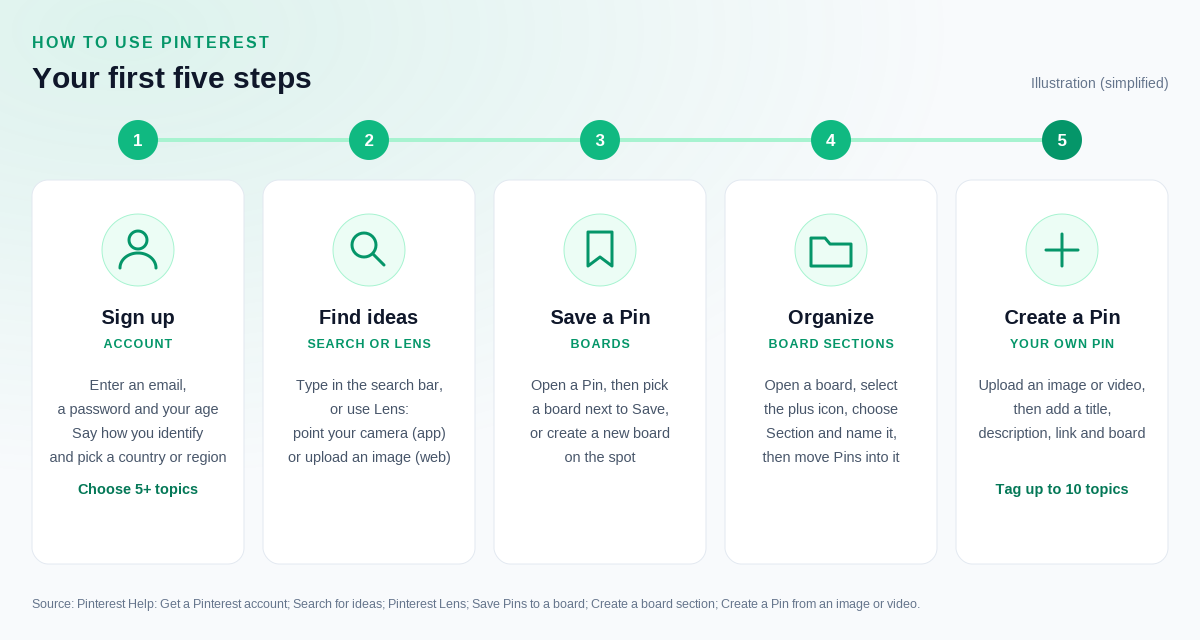
- Sign up with an email, a password and your age, then pick your country and 5 or more topics. Checked against Pinterest Help: Get a Pinterest account
- Find an idea by typing in the search bar, or point Lens at something: tap the camera icon in the app’s search bar, or upload an image in the search bar on the web. Checked against Pinterest Help: Pinterest Lens
- Save a Pin by choosing a board from the menu next to Save, or create a new board on the spot. Checked against Pinterest Help: Save Pins to a board
- Add a section inside the board, so Pins for one plan stay grouped as the board grows. Checked against Pinterest Help: Create a board section
- Create your first Pin with a title, description, link, board and up to 10 tagged topics. Checked against Pinterest Help: Create a Pin from an image or video
Steps 1 to 4 are enough to use Pinterest for ideas. Step 5 is where you start sharing your own.
How do you set up a Pinterest account and profile?
Enter an email, a password and your age, pick your country or region and 5 or more topics; then add a photo, name, bio, pronouns and website to your profile. You need to be at least 13 to use Pinterest; in countries where the age of consent to data processing is between 13 and 16, you must be over that country’s age. Checked against Pinterest Help: Age requirements and verification
On the web:
- Go to Pinterest
- Enter your Email, Create a password, and enter your Age
- Click Continue
- Click Next
- Select how you identify
- Select your language and country/region from the dropdown menus
- Select 5 or more topics
- Click Done
In the Android app:
- Open the Pinterest app on your device
- Enter your Email address, then tap Continue
- Create a Password, then tap Next
- Enter your Full name, then tap Next
- Enter your Age, then tap Next
- Select how you identify
- Select your country or region, then tap Next
- Select 5 or more topics, then tap Next
- If you'd like, follow creators based on your interests, then tap Done or tap Skip
In the iPhone app:
- Open the Pinterest app on your device
- Enter your Email address, then tap Continue
- Create a Password, then tap Next
- Enter your Age, then tap Next
- Select how you identify
- Select your country or region, then tap Next
- Select 5 or more topics, then tap Next
- If you'd like, follow creators based on your interests, then tap Done
Checked against Pinterest Help: Get a Pinterest account.
Fill in your Pinterest profile
Your public profile can show a profile photo, a name, a bio, up to two sets of pronouns, a website and your username. Checked against Pinterest Help: Access, edit or delete personal data The bio holds up to 500 characters (Pinterest Help: Edit your profile).
- Name. A personal account needs a first name, and a last name is optional; a business account enters its business name. Checked against Pinterest Help: Edit your profile
- Username. It is 3 to 30 characters of letters, numbers and underscores, with no spaces or punctuation, and it cannot be only numbers. Checked against Pinterest Help: Edit your profile
- Profile address. Your username gives your profile its web address: www.pinterest.com/ followed by the username. Checked against Pinterest Help: Edit your profile To copy it or send it, see how to find and share your Pinterest URL.
- Website. Add it under Settings, then Edit profile, then Website (Edit profile, then Website, in the app). To get that site’s analytics and show a featured logo on your Pins, you also claim the website. Checked against Pinterest Help: Add your website to your profile
A second account
You can create an additional personal account with a different email address and connect the two to switch between them. Switching works within the same browser session and stops if you clear your cache and cookies or change device. Checked against Pinterest Help (en-GB): Connect Pinterest accounts Each email address can belong to only one Pinterest account at a time. Checked against Pinterest Help: Troubleshoot issues logging in with an email address
Go deeper: the same profile fields on every other network, in one place, in how to set up every social media profile.
How do you find ideas on Pinterest?
Type what you want in the search bar on the web or the search tab in the app, refine the results with guides and filters, or search with a picture using Lens or visual search. For some searches you can also select Less AI to see less AI-modified content. Checked against Pinterest Help: Search for ideas on Pinterest
- Guides. After a search, Pinterest may show suggested terms near the search bar, called guides. Selecting one starts a new search with that term added, drawn from Pinterest’s most popular search terms. Checked against Pinterest Help: Search for ideas on Pinterest
- Filters. You can narrow results by content type, including all Pins, Boards, Profiles, Videos and Products, or search only your own saved Pins with Your Pins. Checked against Pinterest Help: Search for ideas on Pinterest
- Search with a Pin. Pick a Pin from your results and refine the search with it in mind, adding your own words. It works on desktop and iOS only. Checked against Pinterest Help: Search for ideas on Pinterest
- Lens. Point the Pinterest camera at something to find related ideas: the camera icon in the app’s search bar, or an image upload in the search bar on the web. Checked against Pinterest Help: Pinterest Lens
- Visual search. Select part of a Pin’s image with the magnifying-glass-sparkle icon to find similar or shoppable items. It is not available on ads or collage Pins. Checked against Pinterest Help: Use visual search features
- Voice search. Available only in the US, with your language set to English. Checked against Pinterest Help: Search for ideas on Pinterest
- Pinterest Assistant. A conversational AI shopping and discovery feature, in beta for US users aged 18 and over on iPhone only. Checked against Pinterest Help: Pinterest Assistant
- Pinterest Trends. Up to the last two years of top search, save and shopping trends by region. It opens in a desktop or mobile browser, not in the app. Checked against Pinterest Business Help: Browse Pinterest Trends
Follow people and boards
Following is how you steer the home feed on purpose, because Pins from the people and boards you follow appear there. Checked against Pinterest Help: All about Pinterest To follow a person, search for their name or username, filter the results to Profiles where available, open the profile and select Follow; private profiles do not appear in search. Checked against Pinterest Help: Find and follow people To follow just one board, open it, select the ellipsis icon and choose Follow. Checked against Pinterest Help: Find boards on Pinterest
How do you save Pins and organize them on boards?
Open a Pin and choose a board from the menu next to Save, or create a new board right there. Saving a Pin is not the same as pinning a post to the top of a profile; here is what “pinned” means on other apps. Use sections inside a board, private boards for plans you are not ready to share, and group boards to collect ideas with other people.
On the web:
- Hover over a Pin or click on the Pin to open the Pin in a closeup view
- Click the arrow-down icon at the top right (next to Save)
- Hover over the board you want to select and click Save, or click the plus icon to create a new board
In the Android app:
- Tap the Pin to open the Pin in a closeup view
- Tap Save at the bottom of the Pin
- Choose a board to save your Pin to or Create board to save it to a new board
In the iPhone app:
- Tap a Pin to open it in closeup
- Tap Save at the bottom of the Pin
- Choose a board to save your Pin to or Create new board to save it to a new board
Checked against Pinterest Help: Save Pins to a board.
You can also save from other websites, either by entering a site’s URL in the Pin builder or with the Pinterest Save Extension in your browser. Checked against Pinterest Help: Save Pins from the web Stick to those built-in routes: Pinterest’s Community Guidelines forbid any undocumented or unsupported method of accessing, scraping or downloading any part of Pinterest. Checked against Pinterest Policy: Community Guidelines
Create a board
Select the plus icon, choose Board, give it a name (Pinterest may suggest one) and select Create. You can also make it secret or add collaborators as you go. Checked against Pinterest Help: Create a board
On the web:
- Log in to your Pinterest account
- Click the square-plus icon in the navigation bar at the left side of your screen
- Select Board
- Enter a name for your board (toggle Keep this board secret to make it secret; add collaborators if you'd like)
- Click Create
In the Android app:
- Open the Pinterest app and log in
- Tap the plus icon
- Tap Board
- Enter a name for your board (toggle Make this board secret, or invite collaborators)
- Tap Create at the top-right corner
iOS steps are the same as Android.
Checked against Pinterest Help: Create a board.
Add sections to a board
Sections organize Pins inside one board: a recipes board might have one section per meal. Open the board, select the plus icon, choose Section, name it, then pick the Pins to move in.
On the web:
- Click your profile picture at the top-right of your screen to open your profile
- Click your board to open it
- Click the plus icon at the bottom of your screen
- Select Section
- Enter a name for your section, then click Add
- Click Organize at the top of your board, then select the Pins you want to move
- Click Move at the top of the page
- Click Save next to the section you want to move your Pins to
In the Android app:
- Tap your profile picture at the bottom-right of your screen
- Tap your board to open it
- Tap the plus icon at the bottom of your screen
- Tap Section
- Enter a name for your section, then tap Next
- Select the Pins you want to move to your section
In the iPhone app:
- Tap your profile picture at the bottom-right of your screen
- Tap your board to open it
- Tap the plus icon at the bottom of your screen
- Tap Section
- Enter a name for your section, then tap Next or pick one of the suggested names
- Select the Pins you want to move to your section
- Tap Done
Checked against Pinterest Help: Create a board section.
Private, group, archived and deleted boards
- Private (secret) boards. Only you and anyone you invite can see them. Saving to one does not notify the person you saved from or raise the Pin’s count, and private boards and Pins cannot be promoted as ads. Pinterest’s privacy article calls the toggle “Make this board private”, while its create-a-board steps still say “secret”: it is the same setting. Checked against Pinterest Help: Private boards
- Group boards. Invite people to one of your boards and it becomes a group board. As the owner, you choose what collaborators can do, from almost everything to only saving and commenting. Checked against Pinterest Help: Create and manage group boards
- Archived boards. Archiving hides a board from your public profile and stops new saves to it; you can unarchive it at any time. Checked against Pinterest Help: Archive or delete a board
- Deleted boards. Deleting a board deletes every Pin on it. You then have seven days to restore it from Recently deleted, and restoring works only on desktop or Android (on desktop only for a business account). Checked against Pinterest Help: Archive or delete a board
Older guides quote fixed caps on Pins and boards. Pinterest now says it limits the total number of boards and follows without publishing the numbers, and that there is no limit on the Pins you can create or the people who can follow you. Checked against Pinterest Help: Limits for Pins, boards and follows
How do you create your own Pins?
Select Create on the web, or the add icon and then Pin in the app, upload an image or video, then add a title, description, link, board and up to 10 topics before you publish or save a draft. The link is optional: Pinterest says to add one if you have one, to give people a place to learn more. Checked against Pinterest Help: Create a Pin from an image or video
On the web:
- Log in to your Pinterest account
- Click Create at the top-left of your screen (business accounts: hamburger icon > Create > Create Pin)
- Click the arrow-circle-up icon to select an image from your computer (or drag and drop)
- Add a Title, Description, Link (if you have one) and Board; tag up to 10 related topics
- Business accounts: Publish at a later date (up to 30 days in advance)
- Mark as AI-Modified if the content was made completely or partly with AI or includes an AI-generated person
- More options: turn comments and shopping recommendations on or off
- Click the pencil icon to edit the image (add text, change the aspect ratio and more), then Done
- Click Publish
In the Android app:
- Log in to the Pinterest app
- Tap the add icon at the bottom of the screen
- Tap Pin
- Select images or videos from your device (or tap the camera icon)
- Tap Continue
- Add a Title, Link, product tags, Description (hashtags allowed), Board and up to 10 related topics
- Tap Create
iOS steps are the same as Android.
Checked against Pinterest Help: Create a Pin from an image or video.
On the web you can select up to 10 images or videos at once and each becomes its own Pin; combining several into one video Pin needs the app. Checked against Pinterest Help: Create a Pin from an image or video
| Placement | Character limit | Source |
|---|---|---|
| Pin title | 100 characters First 40 visible in feeds | Pinterest Help: Review Pin specs |
| Pin description | 800 characters | Pinterest Help: Review Pin specs |
| Pin alt text | 500 characters | Pinterest API v5 OpenAPI description |
Pinterest recommends a 2:3 ratio for standard image Pins (Pinterest Business Help: Review ad specs). Three rules catch new Pinners out:
- Motion turns an image Pin into a video Pin. An image Pin shows a single image, and adding motion elements to an uploaded image makes it a video Pin. Checked against Pinterest Help: Types of Pins on Pinterest
- The media is locked once published. Depending on the Pin, you can still edit the title, description, link, board, section and comment settings, but never the image, video or audio; for that, you create a new Pin. Checked against Pinterest Help: Edit or delete a Pin
- Drafts expire. A Pin draft expires 30 days after you first store it and cannot move between devices. Publishing drafts in bulk works only on desktop, which holds up to 50 drafts. Checked against Pinterest Help: Create a Pin from an image or video
Go deeper:
- How to post on Pinterest: the Pin builder on desktop and in the app, and Pinterest’s own scheduler.
- Pinterest post ideas when you know how to make a Pin but not what to make.
- Pinterest fonts for styled text, and why plain words are safer where search matters.
- Pin image sizes with every other network’s sizes in one table.
Where Outfeed fits
If you publish image Pins for a brand alongside other networks, this is what Outfeed does on Pinterest:
Schedule your next image Pin with Outfeed AI
Can you use Pinterest online in a web browser?
Yes. Pinterest works in a web browser at pinterest.com, and Pinterest suggests the web, added to your home screen, for older phones that cannot update the app. For the smoothest mobile experience it recommends the app from the App Store, Google Play or the Amazon Appstore. Checked against Pinterest Help: Upgrade the Pinterest app
On the web:
- Chrome: go to Pinterest.com in your Chrome mobile browser, tap the three-dot button, tap Add to Home screen, then tap Add
- Safari: go to Pinterest.com in Safari, tap the share icon, then find and tap Add to Home Screen
Checked against Pinterest Help: Upgrade the Pinterest app.
Most tasks work in both places, but some do not. These are the differences Pinterest’s Help Center documents:
| Task | On the web | In the app |
|---|---|---|
| Create a new business account | Desktop only | Not available (convert a personal account instead) |
| Convert a personal account to business | Yes | Yes |
| Search with a Pin | Desktop | iOS only |
| Lens | Upload an image in the search bar | Camera icon in the search bar |
| Pinterest Trends | Desktop or mobile browser | Not in the app |
| Pinterest Assistant | No | iPhone only, US, 18+, beta |
| Restore a deleted board | Desktop | Android only (not for business accounts) |
| Publish Pin drafts in bulk | Desktop, up to 50 drafts | No |
| Combine images and videos into one video Pin | No, each file becomes its own Pin | Yes |
| Share your own profile to another social network | Desktop only | No |
| Creator Hub (business accounts) | No | Mobile app only |
Checked against Pinterest Business Help: Get a business account.
Checked against Pinterest Business Help: Get a business account.
Checked against Pinterest Help: Search for ideas on Pinterest.
Checked against Pinterest Help: Pinterest Lens.
Checked against Pinterest Business Help: Browse Pinterest Trends.
Checked against Pinterest Help: Pinterest Assistant.
Checked against Pinterest Help: Archive or delete a board.
Checked against Pinterest Help: Create a Pin from an image or video.
Checked against Pinterest Help: Create a Pin from an image or video.
Checked against Pinterest Help: Share Pins, boards and profiles to social networks.
Checked against Pinterest Create: Frequently asked questions from creators.Vendor's own description
Which Pinterest settings should you check first?
Check who can find your profile, how much AI content you see, whether your Pins train Pinterest’s image model, who you have blocked, and the difference between deactivating and deleting. Each is one setting:
- Private profile. Settings, then Profile visibility, then Private profile hides your profile, boards and Pins from Pinterest search and search engines. Business profiles are always public, and profiles of teens aged 13 to 16 are private by default and cannot be made public. Checked against Pinterest Help: Make your profile private or public
- Search privacy. For people 18 and over, this adds a tag asking search engines such as Google, Bing and Yahoo to leave out your profile and boards. It is on automatically for private profiles, and results already indexed may remain. Checked against Pinterest Help: Update your search privacy
- Fewer AI Pins. Refine your recommendations has an AI content tab, where you can see fewer GenAI Pins by topic, and an Activity tab, where you can turn off recommendations based on Pins you engaged with. It does not change the ads you see. Checked against Pinterest Help: Refine your recommendations
- Canvas training opt-out. Pinterest trains its image model, Pinterest Canvas, on certain public content people save or upload. You can opt out at any time under Settings, then Privacy and data, then Use your data to train Pinterest Canvas; under-18 accounts are opted out automatically. Checked against Pinterest Help: Manage GenAI settings
- Blocked accounts. Blocking a profile stops that person from following you, messaging you or interacting with your Pins, and nobody is notified. The list lives under Settings, then Social permissions, then Blocked accounts. Checked against Pinterest Help: Block or unblock someone
- Deactivate or delete. Deactivating pauses Pinterest and hides your profile and boards until you come back; deleting removes your profile and boards for good. Checked against Pinterest Help: Delete or temporarily deactivate your account
To fine-tune the feed, these are Pinterest’s steps to Refine your recommendations:
On the web:
- Click the more-options icon at the bottom left of your screen
- Select Refine your recommendations
- Click the AI content or Activity tabs
In the Android app:
- Tap your profile picture at the bottom-right corner
- Tap the more-options icon at the top-right of your screen
- Tap Refine your recommendations
- Tap the AI content or Activity tabs
iOS steps are the same as Android. Business accounts: profile photo > ellipsis icon > Settings > Refine your recommendations.
Checked against Pinterest Help: Refine your recommendations.
Go deeper: the full steps and the waiting period are in how to delete or deactivate your Pinterest account.
Should you use Pinterest for business or as a creator?
Yes, if people search for the kind of ideas you can show. A business account is free and adds Pinterest Analytics, the Pinterest Business Hub and ads. Checked against Pinterest Business Help: Get a business account Pinterest’s creator site also says both account types are free, and that the business account adds tools a personal account lacks, such as analytics in the Creator Hub. Checked against Pinterest Create: How to get startedVendor's own description
A new business account can only be created on a desktop device, with an email not already used on another Pinterest account:
On the web:
- Go to pinterest.com and click Sign up at the top-right of your screen (log out first if you have an account)
- Click Create a business account
- Enter your Email, Create a password and enter your Age
- Click Create account
- Fill out the fields to Build your profile, then click Next
- Fill out the fields to Describe your business, then click Next
- Select if you want to run ads, then click Next
- Select where you'd like to start or click the x icon to go to your new Pinterest business account
Android and iOS tabs say a new business account can only be created on desktop.
Checked against Pinterest Business Help: Get a business account.
If you already have a personal account, converting it keeps all your Pins and followers and can be undone at any time; a private profile has to be made public first. Checked against Pinterest Business Help: Get a business account Pinterest no longer lets you link a separate personal account to a business account, though accounts linked earlier stay connected unless you unlink them. Checked against Pinterest Business Help: Get a business account
What a business account adds, in practice:
- Native scheduling. You can schedule a Pin up to 30 days in advance from the Pin builder. Up to 10 Pins scheduled at once; schedule one Pin at a time (Pinterest Business Help: Schedule Pins).
- Pinterest Analytics. It needs a business account and shows impressions, engagements, saves, Pin clicks, outbound clicks, video metrics and audience for custom date ranges over the past year and a half. Checked against Pinterest Help Center (Business): Review Pinterest Analytics
- The Creator Hub. Creator tools, tips and analytics for business accounts, in the Pinterest mobile app only, from a button below the bio and stats on your profile. Checked against Pinterest Create: Frequently asked questions from creatorsVendor's own description
Followers matter less than you might expect. Pinterest says content on Pinterest does not rely primarily on followers to be discovered: topics, keywords and imagery influence when your Pins appear. Checked against Pinterest Create blog: The best ways to grow on PinterestVendor's own description It advises judging success mainly by saves, impressions, Pin clicks and outbound clicks, with followers as a nice-to-have. Checked against Pinterest Create blog: The best ways to grow on PinterestVendor's own description
Go deeper:
- How to get followers on Pinterest the way Pinterest recommends, and what to measure instead.
- The best time to post on Pinterest for when you are ready to plan a schedule.
Frequently asked questions
How do I use Pinterest as a beginner?
Sign up, pick 5 or more topics, then search for an idea, save a Pin you like to a new board and keep saving. Your home feed learns from what you save and from the people and boards you follow. When you are ready, select Create on the web, or the add icon and then Pin in the app, to publish your own Pin.
Is Pinterest free to use?
Yes. Pinterest’s creator site says both account types, personal and business, are free, and that the business account adds features a personal account does not have, such as creator tools and analytics.
What is the difference between a personal and a business Pinterest account?
A business account is free and adds Pinterest Analytics, the Pinterest Business Hub and ads. You can convert a personal account and keep your Pins and followers, but a brand-new business account can only be created on a desktop device.
Can you use Pinterest without the app?
Yes. Pinterest works on the web at pinterest.com, and Pinterest suggests adding it to your home screen from Chrome or Safari if your phone cannot update the app. A few features are web-only or app-only; the table in this guide lists them.
Can you make your Pinterest profile private?
Yes. In Settings, open Profile visibility and turn on Private profile to hide your profile, boards and Pins from Pinterest search and from search engines. Business profiles are always public, and profiles of teens aged 13 to 16 are private by default.