
Why Is My Instagram Story Blurry? Fixes in Order
Why is my Instagram story blurry when the original looks fine? Work through these fixes in order, quickest first: turn off the data-saving settings, upload a 9:16 file, post on a strong connection, update or reinstall the app, then clear its cache on Android or offload it on iPhone. Every setting named here comes from Instagram’s, Apple’s or Google’s own help pages.
Before any of them, open the photo or video in your camera roll. If it’s already soft there, no Instagram setting will sharpen it: reshoot it or export it again. One popular fix, Upload at highest quality, is documented for reels only, as explained below. Everything else Stories can do is in our guide to how to use Instagram.
Table of Contents
- Why are my Instagram stories blurry? The quick answer
- Fix 1: Turn off the data-saving settings
- Fix 2: Upload a 9:16 story at 1080 x 1920
- Fix 3: Check your connection before you post
- Does ‘Upload at highest quality’ fix blurry stories?
- Fix 4: Update, restart or reinstall Instagram
- Fix 5: Clear the cache (Android) or offload the app (iPhone)
- Why is my Instagram story blurry? FAQ
Why are my Instagram stories blurry? The quick answer
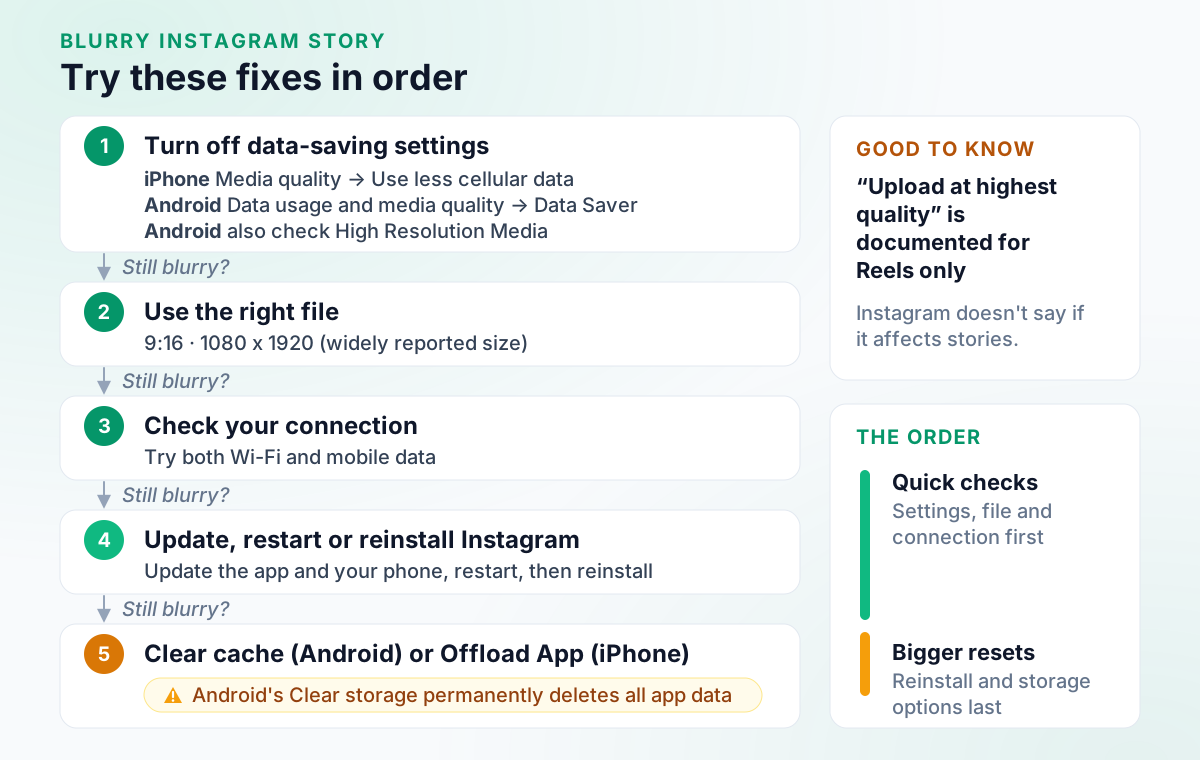
The causes you can act on are the ones Instagram’s settings and troubleshooting cover: how media loads over mobile data, the shape and size of your file, the connection you post on, and the state of the app on your phone. Work down the chart below. Each fix says when to try it, and where to go next if the story is still blurry.
Fix 1: Turn off the data-saving settings
Try this if your stories look sharp on Wi-Fi but soft on mobile data. iPhone’s Use less cellular data and Android’s Data Saver stop Instagram preloading videos over mobile data, and Instagram says they don’t change how the app works on Wi-Fi. It doesn’t say they affect upload quality, but they take seconds to rule out.
Instagram’s steps turn each setting on. Follow the same path and make sure the toggle is off:
On iPhone:
- Tap Profile or your profile picture in the bottom right to go to your profile.
- Tap Menu in the top right.
- Scroll down and tap Media quality.
- Next to Use less cellular data, tap the toggle to turn it on.
On Android:
- Tap Profile or your profile picture in the bottom right to go to your profile.
- Tap Menu in the top right.
- Scroll down and tap Data usage and media quality.
- Next to Data Saver, tap the toggle to turn it on.
- Optional: tap High Resolution Media and choose Never, WiFi Only or Cellular + WiFi.
Checked against Instagram Help Center: Use less data on Instagram.
On Android, the optional High Resolution Media step offers Never, WiFi Only or Cellular + WiFi. Instagram describes it as a viewing setting: it decides when Instagram shows you high-resolution media and says nothing about uploads. Checked against Instagram Help Center: Help use less data on Instagram (High resolution media on an Android device) So if stories you watch look soft on mobile data and you’d rather keep Data Saver on, try Cellular + WiFi and compare.
Still blurry? Check the file itself.
Fix 2: Upload a 9:16 story at 1080 x 1920
Try this if only some stories blur, such as screenshots, landscape photos or graphics made in another app. Stories are 9:16, and the widely reported upload size is 1080 x 1920 pixels, Instagram’s 1080-pixel width at that shape. A file made at that shape and size already matches the story frame.
- Design at full size. Set your canvas to the story size before you start, rather than resizing a finished image.
- Collages. Instagram’s own Layout tool splits a single story frame into a grid, so the result is already story-shaped. Checked against About Instagram: How to Use Instagram Stories: Complete 2026 Guide (2 July 2026) How to add multiple photos to an Instagram story walks through it.
- Other formats. Sizes for posts, Reels and profile pictures are in our Instagram post size guide.
Still blurry? Look at the connection.
Fix 3: Check your connection before you post
Try this if stories blur on one network but not the other, or the upload hangs. Instagram’s troubleshooting article tells you to try both Wi-Fi and mobile data. Checked against Instagram Help Center: Troubleshooting Switch to the other one and post the story again. If it comes out sharp this time, the network was the likely cause.
Still blurry? Read the next section before you go hunting for a quality toggle.
Does ‘Upload at highest quality’ fix blurry stories?
Not as far as Instagram says. Many guides lead with this toggle, but Instagram documents Upload at highest quality under Reels Quality, for reels, and no Help Center article says it applies to stories. Checked against Instagram Help Center: Reel size & aspect ratios on Instagram (no Stories mention)Not verified If you post reels too, it’s worth turning on for them; Instagram notes that higher-quality reels may take longer to upload.
In the Instagram app:
- Tap Profile or your profile picture in the bottom right to go to your profile.
- Tap Menu in the top right.
- Below Your app and media, tap Media quality.
- Next to Upload at highest quality, tap the toggle to turn it on.
Checked against Instagram Help Center: Reel size & aspect ratios on Instagram (Reels Quality).
Fix 4: Update, restart or reinstall Instagram
Try this if stories were fine until recently, or other photos and videos in the app look wrong too. Instagram’s own troubleshooting order is to update the app and your phone’s software, restart your phone, try both Wi-Fi and mobile data, then uninstall and reinstall Instagram. Checked against Instagram Help Center: Troubleshooting
Have your login details ready before you reinstall. If an update doesn’t fix it, Instagram asks you to report the problem: shake your phone, or go to Help, then Report a problem. Checked against Instagram Help Center: Report a technical problem on Instagram
Still blurry? One last thing to try.
Fix 5: Clear the cache (Android) or offload the app (iPhone)
Try this last. Instagram documents no clear-cache button inside the app, so it’s done from your phone’s settings, and Apple documents no per-app cache button on iPhone at all. Checked against Instagram Help Center: Adjust your Android settings for Instagram (no in-app cache setting documented)Not verified
On Android, Instagram’s own article starts at your phone’s settings, then Apps, then Instagram. Checked against Instagram Help Center: Adjust your Android settings for Instagram Settings vary by device, so here are Google’s steps for a Pixel as an example:
On Android: on a Pixel phone:
- Open your device's Settings app.
- Tap Apps, then See All Apps.
- Tap the app.
- Tap Storage & cache, then Clear cache or Clear storage.
Checked against Pixel Phone Help (Google): Free up space on a Pixel phone.
Clear cache deletes temporary data. Clear storage permanently deletes all the app’s data, which for Instagram means logging in again, so start with Clear cache.
On iPhone, Apple’s storage screen lets you offload the app, which frees the storage it uses but keeps its documents and data, or delete it, which removes the app and its data so you can reinstall it from the App Store. Offloading keeps your data, so deleting and reinstalling is the fuller reset:
On iPhone:
- Open Settings.
- Tap General.
- Tap iPhone Storage to see recommendations and a list of apps with their storage usage.
- Tap an app's name for more information about its storage.
Checked against Apple Support: How to check the storage on your iPhone and iPad.
What each option removes, device by device, is in how to clear Instagram’s cache.
Wondering whether a scheduling tool could post the story for you instead? Outfeed AI, from the team writing this guide, answers for itself:
Plan your next Instagram feed post in Outfeed AI
Why is my Instagram story blurry? FAQ
Why are my Instagram stories blurry but my camera photos are clear?
Rule out the settings Instagram documents, quickest first: turn off Use less cellular data (iPhone) or Data Saver (Android), upload a 9:16 file at the widely reported 1080 x 1920 size, and try both Wi-Fi and mobile data. If it still looks soft, update the app and your phone’s software, restart your phone, then uninstall and reinstall Instagram.
How do I turn on ‘Upload at highest quality’ on Instagram?
Go to your profile, tap Menu, tap Media quality below Your app and media, then turn on the Upload at highest quality toggle. Instagram documents this setting for reels only and notes that higher-quality reels may take longer to upload. No Instagram Help Center article says it changes how stories upload.
Does Data Saver make Instagram blurry?
Instagram doesn’t say it does. Its help article says Data Saver on Android, and Use less cellular data on iPhone, stop videos preloading over mobile data and don’t change how the app works on Wi-Fi. Android also lists High Resolution Media, a viewing setting with the choices Never, WiFi Only or Cellular + WiFi. If stories look sharper on Wi-Fi, turn these off and compare.
Why are Instagram stories blurry on Android?
Start with the Android settings Instagram documents: Data Saver and High Resolution Media, under Data usage and media quality. Then try both Wi-Fi and mobile data, update the app and restart your phone. Last, clear Instagram’s cache from your phone’s settings under Apps. Google says clearing the cache deletes temporary data, and settings can vary by device.