
How to Post on TikTok From a PC or Mac (2026)
How do I post my TikTok on PC? Log in to TikTok in a web browser, click Upload at the top, choose your video file, then add a caption and settings before you post. That browser upload, which runs through TikTok Studio, is the way TikTok documents for posting from a computer.
The browser plays by its own rules: a 30-minute cap where the app allows 60, no trimming, and a scheduler TikTok gives steps for only on desktop web. Each one is below, with TikTok’s Help Center as the source. The phone side of TikTok, from sign-up to sounds, is in our beginner’s guide to using TikTok. Cross-posting the same vertical video? YouTube Studio takes Shorts from a computer too: see how to upload a YouTube Short.
Table of Contents
- How do I post my TikTok on PC? (step by step)
- What can you set before posting from a computer?
- What are TikTok’s upload limits on a computer?
- Is there a TikTok app for PC or Mac?
- What can’t you do on desktop? (phone app vs computer)
- Can you post photos to TikTok from a computer?
- Can you schedule a post or go LIVE from a computer?
- Posting from a computer: FAQ
How do I post my TikTok on PC? (step by step)
Sign in to your TikTok account in the browser, then upload from the Upload button. TikTok’s web instructions for TikTok Studio begin with logging in. Checked against TikTok Help Center: Tools for creators (TikTok Studio) Its Making a post article then gives the upload itself:
On a computer:
- Click Upload at the top.
- Click Select video to upload or Select file.
- Choose the video you'd like to upload.
Checked against TikTok Help Center: Making a post.
Once the file is in, fill in the post details from the next section, then post it or schedule it. Check the length before you choose the file, though. TikTok uploads the entire video from a browser and says to use the TikTok app if you want to change the length, so trim it in your editor first, or post that video from the app.
What can you set before posting from a computer?
A caption, a cover, who can watch, whether others can Duet, Stitch, make stickers from or add your video to their Stories, and whether comments are allowed. TikTok Studio on the web also has a Run a copyright check option: select it and TikTok checks the sounds in your video for copyright problems, so you can edit before posting. Checked against TikTok Help Center: Tools for creators (TikTok Studio)
Look at “who can watch” every time. TikTok says a new post keeps your previous post’s privacy setting, so if your last post was set to Only you, the next upload starts that way too. Checked against TikTok Help Center: Making a post
Those are the controls TikTok lists for the web. It adds that tools vary between the app and the web, and that some features aren’t available in every region, so your upload screen may show more or fewer options than someone else’s.
What are TikTok’s upload limits on a computer?
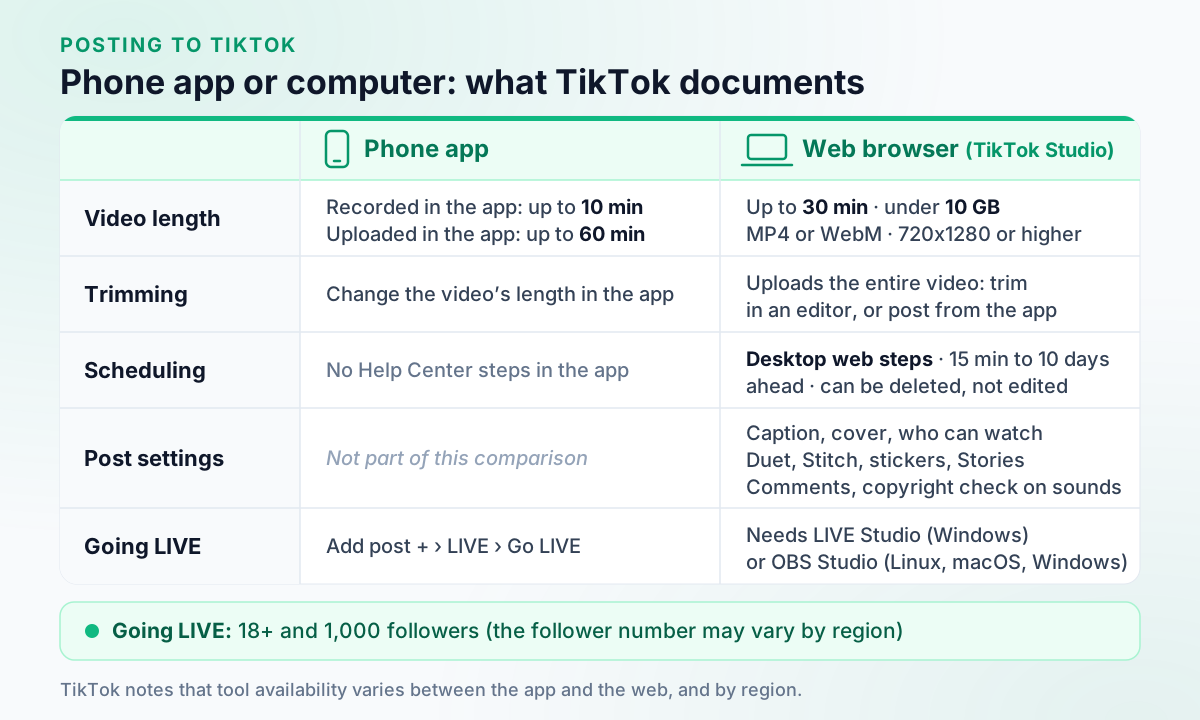
In a web browser, TikTok Studio takes MP4 or WebM video at 720x1280 or higher, up to 30 minutes long and less than 10 GB. Checked against TikTok Help Center: Tools for creators (TikTok Studio) The TikTok app is more generous with length: videos uploaded in the app can run to 60 minutes, and videos recorded with its camera to 10. Checked against TikTok Help Center: Camera tools
| Where you post | Longest video |
|---|---|
| Web browser on a computer (TikTok Studio) | 30 minutes, in an MP4 or WebM file under 10 GB |
| TikTok app, uploading a file | 60 minutes |
| TikTok app, recording with its camera | 10 minutes |
So a video between 30 and 60 minutes long can still be uploaded in the TikTok app, but not in a browser. For resolution, 720x1280 is the floor, and 1080 x 1920 pixels is the widely used export size, though TikTok’s Help Center doesn’t publish a recommended resolution. Aspect ratios and safe zones are in our TikTok video size guide, and every length limit, including the one scheduling tools work to, is in how long TikTok videos can be.
Is there a TikTok app for PC or Mac?
Not one that TikTok’s Help Center documents for posting. It describes posting from a computer in a web browser, and its download article covers the Android app and TikTok Lite only. Checked against TikTok Help Center: Download TikTok for AndroidNot verified
What TikTok does document is TikTok Studio in three places: inside the TikTok app, in a web browser, and as a separate TikTok Studio app. TikTok says content management and analytics are best accessed from a web browser. Checked against TikTok Help Center: Tools for creators (TikTok Studio) The TikTok Studio app is a phone app, from Google Play and the App Store, and it shares your TikTok account: a post you upload or delete there is uploaded or deleted in TikTok too. Checked against TikTok Help Center: TikTok Studio
So if you come across a “TikTok for PC” download, check who publishes it. TikTok’s own help pages point you to the browser.
What can’t you do on desktop? (phone app vs computer)
TikTok documents no browser route for trimming a video or for any post that isn’t a video. The browser uploads the whole file, and TikTok’s steps for photo posts, live photos, text posts and adding a sound are all app steps. In return, the computer is where TikTok gives its scheduling steps, and the place it says content management and analytics are best accessed.
TikTok documents these in the app only:
- Changing a video’s length. “To change the length of the video, upload your video in the TikTok app,” TikTok says. Checked against TikTok Help Center: Making a post
- Photo posts, live photos and text posts. The Making a post article gives web steps for video files only.
- Adding a sound. TikTok’s Sounds help covers the app, from Add post + and then Add sound. On the web, the sound setting TikTok lists is the copyright check. Checked against TikTok Help Center: Sounds
- Uploads between 30 and 60 minutes long. The app’s upload cap is twice the browser’s.
These work from a computer:
- Scheduling. TikTok’s step-by-step scheduling instructions are for desktop web, covered below.
- Content management and analytics, which TikTok says are best accessed from a web browser.
- Answering comments. TikTok Studio on the web lets you delete, like, dislike and reply to comments, but lists no pin option. Checked against TikTok Help Center: Tools for creators (TikTok Studio) Our guide to pinning comments on TikTok covers what TikTok does document about pins.
Can you post photos to TikTok from a computer?
TikTok’s Help Center doesn’t document it. Its web upload steps and TikTok Studio’s web requirements describe a video file (MP4 or WebM), and its photo-post steps are for the TikTok app. Checked against TikTok Help Center: Tools for creators (TikTok Studio) and Making a post (searched)Not verified The documented route is the app, set out step by step in our guide to making a TikTok slideshow.
Can you schedule a post or go LIVE from a computer?
Yes to both, with conditions. TikTok gives scheduling steps for desktop web: after uploading, you switch on the schedule toggle and choose a date and time between 15 minutes and 10 days ahead. Scheduled posts can be deleted but not edited, and the feature isn’t on TikTok mobile web. Checked against TikTok Help Center: Schedule video Who qualifies, and what to do when the toggle is missing, is in our guide to scheduling TikTok posts. On YouTube, a scheduled upload can instead run as a Premiere, with a public watch page and live chat.
Going LIVE from a computer takes extra software. TikTok says that to go LIVE on a web browser you must download LIVE Studio (Windows) or OBS Studio (Linux, macOS or Windows), so on a Mac the route is OBS Studio. Checked against TikTok Help Center: Comments on TikTok LIVE To go LIVE at all, TikTok says you must be at least 18 and have 1,000 followers, a number that may vary by region, and LIVE isn’t available everywhere. Checked against TikTok Help Center: About TikTok LIVE
Would a scheduling tool take the same files from your computer?
Schedule TikTok posts from your browser with Outfeed AI
Posting from a computer: FAQ
Can you add music to a TikTok from a computer?
TikTok’s Help Center documents adding a sound in the TikTok app, from Add post + and then Add sound. For uploads in a web browser, the sound setting it lists is Run a copyright check, which checks the sounds already in your video for copyright problems. So add music you have the rights to use to the file before you upload it, or post that video from the app.
Why won’t my video upload to TikTok from my computer?
Check it against TikTok Studio’s limits for web uploads: an MP4 or WebM file at 720x1280 or higher, up to 30 minutes long and less than 10 GB. A video between 30 and 60 minutes long can still go up in the TikTok app, which takes uploads of up to 60 minutes. TikTok also notes that tools vary between the app and the web, and some aren’t available in every region.
Is TikTok Studio a separate app?
Yes, and it is also a set of tools. The TikTok Studio app, on Google Play and the App Store, shares your TikTok account, so a post you upload or delete there is uploaded or deleted in TikTok too, and it has no direct messaging. The same Studio tools open inside the TikTok app and in a web browser, which TikTok says is best for content management and analytics.
Can you reply to TikTok comments from a computer?
Yes. In TikTok Studio on a web browser you can delete, like, dislike and reply to comments. TikTok lists no pin option there, and the comments section on the web doesn’t include community-flagged or blocked comments.