
How to Duet on TikTok (and Why You Sometimes Can't)
Learning how to duet on TikTok takes one video and five moves: open it in the app, tap Share, tap Duet, record your part, then post it or save it to Drafts. Your video plays beside the original in a split screen. No Duet option? TikTok’s rules point to the creator’s side: a private account, their reuse settings or their age.
The steps and rules below come from TikTok’s own Help Center, Newsroom and Creator Academy pages, with the date each was checked. Other ways to create on TikTok, from photo posts to sounds, are mapped in our complete guide to TikTok features.
Table of Contents
- How to duet on TikTok
- What Duet layouts can you choose?
- How do you turn on Duet for your videos?
- Why can’t I duet a video on TikTok?
- How do you see duets of your video (and remove them)?
- What’s the difference between a Duet and a Stitch?
- TikTok Duet FAQ
How to duet on TikTok
You make a Duet in the TikTok app, starting from the Share button on the video you want to Duet, then record your side of the split screen. TikTok’s published list jumps from step 4 to step 6. The six steps below are its own text in order, with nothing added to fill the gap.
In the app:
- In the TikTok app, tap the Share button on the side of the video you'd like to Duet.
- Tap Duet at the bottom. You may need to swipe to find it.
- Add effects, filters, or use other camera tools.
- Tap the Record button to start and stop your recording, then tap the Continue ✓ button.
- Tap Your Story to post the Duet to your Story, or Next to make additional edits, including: Add description, Add hashtags, Tag people, Add a location, Add link, Manage privacy settings.
- Tap Post to publish your Duet or Drafts to save it. Your drafts are visible only to you on your profile.
Checked against TikTok Help Center: Duets.
The finished Duet is two videos in a split screen that play at the same time. It appears only on your profile, not the original creator’s, and your privacy settings decide who can watch, comment on, download or interact with it. Checked against TikTok Help Center: Duets
What Duet layouts can you choose?
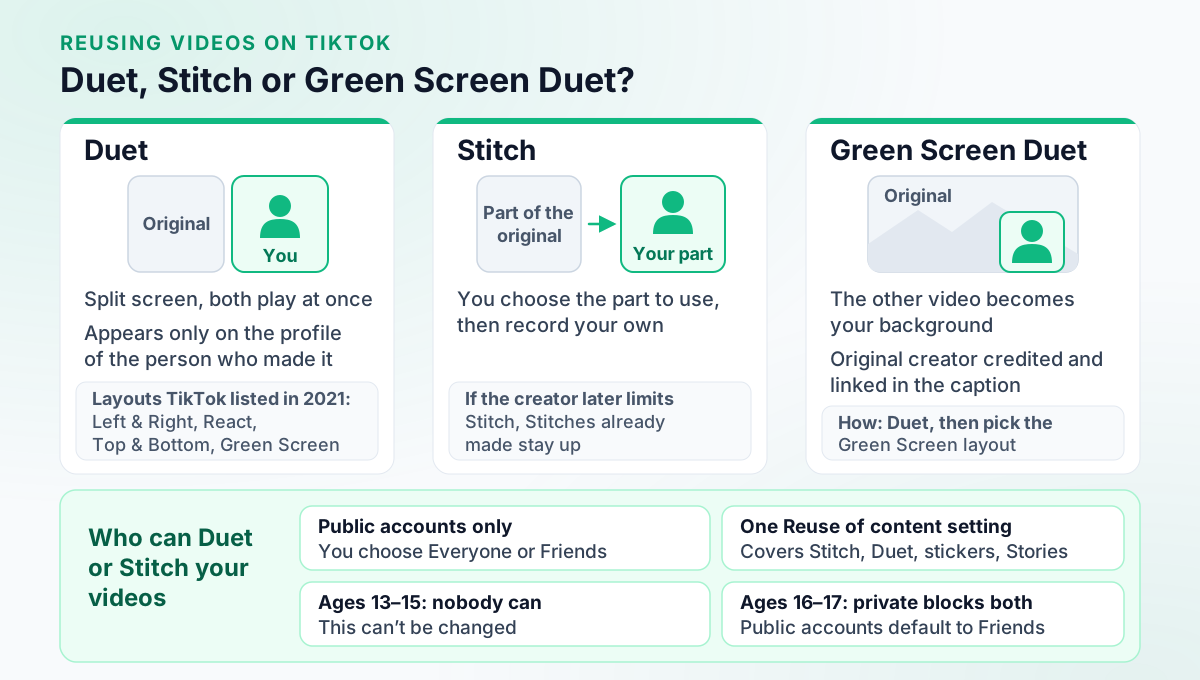
TikTok’s current Duet help article names no layouts. When TikTok launched Green Screen Duet on 12 May 2021, it listed the existing layouts as Left & Right, React and Top & Bottom, and added Green Screen to them. Checked against TikTok Newsroom: Introducing Green Screen Duet (12 May 2021) Treat that as TikTok’s 2021 lineup: the layout menu in your app may differ.
Green Screen Duet uses another TikTok video as the background of your new one. You Duet the video, choose Green Screen from the Duet layout options, and the original creator is credited and linked in your caption. Checked against TikTok Newsroom: Introducing Green Screen Duet (12 May 2021) For green screen with your own photos and videos instead, see how to use green screen on TikTok. Making a reaction? Our guide to TikTok reaction videos compares the React layout with Stitch and Green Screen Duet.
How do you turn on Duet for your videos?
Start with a public account: TikTok says others can Duet with your videos only if your account is public. Then open Reuse of content in your privacy settings and choose Everyone or Friends (followers you follow back). TikTok describes this setting in terms of Stitch, and says turning Stitch off also affects who can Duet, create stickers with your posts or add them to their Story.
In the app: For all your videos:
- In the TikTok app, tap Profile at the bottom.
- Tap the Menu ☰ button at the top, then select Settings and privacy.
- Tap Privacy, then tap Reuse of content.
- Tap Allow reuse of content from and choose who you'd like to allow to Stitch. You can choose Everyone or Friends (followers you follow back). Keep in mind that you must have a public account to allow others to Stitch your videos.
In the app: Before you make a post:
- On the Post screen, tap More options.
- Turn the Allow reuse of content setting on or off.
In the app: For an existing post:
- Go to your video you'd like to update.
- Tap the More options ... button on the side of the video.
- Tap Privacy settings at the bottom. You may need to swipe to find it.
- Turn the Allow reuse of content setting on or off. You may need to scroll to find it.
Checked against TikTok Help Center: Stitch privacy settings.
TikTok’s “Before you make a post” list starts at step 2, and its step 1 isn’t published; none has been added here.
Posting from a computer? When you upload in TikTok Studio on the web, you can choose whether others may Duet, Stitch, make stickers from or add the video to their Stories. TikTok notes that tools vary between the app and the web, and that some aren’t available in every region. Checked against TikTok Help Center: Tools for creators (TikTok Studio)
If you’re under 18, TikTok sets some of these limits for you, as the next section explains.
Why can’t I duet a video on TikTok?
TikTok’s rules point to the other account: it’s private, its owner has limited or switched off reuse of content, or its owner is 13 to 15, an age whose videos nobody can Duet. None of these can be changed from your side, and TikTok also notes that not all videos have Duet turned on.
| Reason | What TikTok says | Can you change it? |
|---|---|---|
| The creator’s account is private | You must have a public account to allow others to Duet with your videos | No |
| The creator allows Friends only | Friends means followers they follow back | Only if you follow each other |
| Reuse of content is off for that video | Creators can turn Allow reuse of content off for a single post | No |
| The creator is 13 to 15 | No one can Duet or Stitch their videos, and this can’t be changed | No |
| The creator is 16 or 17 | A private account blocks Duet and Stitch; a public one defaults to Friends | Not if their account is private; if it’s public, only if you’re friends or they switch to Everyone |
Checked against TikTok Help Center: Duets.
Checked against TikTok Help Center: Stitch privacy settings.
Checked against TikTok Help Center: Privacy and safety settings for users under age 18.
If you’re 13 to 15 yourself, you can still Duet videos made by people over 16.
What doesn’t fix it: downloading the video and building a fake Duet in another app. That gets around a choice the creator made, and TikTok’s originality policy treats copied content as unoriginal, which may be removed from the For You feed. Checked against TikTok Creator Academy: Understanding TikTok's Originality Policy For other reasons a video gets little reach, see our guide to getting more views on TikTok.
How do you see duets of your video (and remove them)?
Each Duet appears only on the profile of the person who made it, so Duets of your video won’t show on your profile. To manage the Duets and Stitches made from one of your videos, TikTok points you to Reuse of content history in your privacy settings.
TikTok’s Duet article puts it in one line: “You can turn Duet off for individual posts or remove Duet posts already associated with your content.” Turning Duet off stops new Duets; TikTok doesn’t say whether Duets made before that stay up, and it publishes no steps for browsing the Duets of your video. Checked against TikTok Help Center: What is Duet on TikTok?
Read the last step before you start. Remove all posts permanently removes your original post along with every Duet and Stitch made from it, and if there are more than 10, TikTok may ask you to verify that the account belongs to you. If you want to keep your original, TikTok suggests downloading your own copy first.
In the app:
- In the TikTok app, tap Profile at the bottom.
- Tap the Menu ☰ button at the top, then select Settings and privacy.
- Tap Privacy, then tap Reuse of content.
- Tap Reuse of content history.
- Select the video you'd like to manage, then tap the More options ... button at the top.
- Tap Remove all posts, then tap Remove to confirm. This will permanently remove your original post and all associated Duet and Stitch videos. If there are more than 10 posts, you may have to verify that your account belongs to you.
Checked against TikTok Help Center: Stitch privacy settings.
Changing your settings later doesn’t take down Stitches already made: TikTok says existing Stitches stay on TikTok even if you later limit who can Stitch or delete your video. Checked against TikTok Help Center: Stitch
What’s the difference between a Duet and a Stitch?
A Duet runs your video beside the original, both playing at the same time in a split screen; a Stitch uses a part of the original as part of your own video. Both need the creator’s account to be public, both are covered by the same Reuse of content setting, and both appear only on the profile of the person who made them.
| Duet | Stitch | |
|---|---|---|
| Start it from | Share, then Duet | Share, then Stitch, then choose the part to use |
| What viewers see | Two videos side by side, playing at the same time | A part of the original, used in your video |
| Who you can allow | Everyone or Friends | Everyone, Friends or Only you |
| Where it appears | Only the Duet-maker’s profile | Only the Stitch-maker’s profile |
To Stitch, tap Share on the video, tap Stitch, choose the part to use, tap Next, record your part, then post. Checked against TikTok Help Center: Stitch At launch on 3 September 2020, a Stitch could use up to five seconds of the other video; TikTok’s current Stitch article gives no clip length. Checked against TikTok Newsroom: New on TikTok: Introducing Stitch (3 September 2020)
Pick Duet when the original should stay on screen beside you, such as singing along or following a tutorial step by step. Pick Stitch when a moment of it sets up your own video. Our TikTok video ideas include a Duet and a Stitch format to start from.
Publish your own TikTok videos with Outfeed AI
TikTok Duet FAQ
Does a Duet show on the original creator’s profile?
No. TikTok says a Duet appears only on the profile of the person who made it. That person’s privacy settings decide who can watch, comment on, download or interact with the Duet.
Can you Duet on TikTok from a computer?
The Duet steps TikTok publishes are for the TikTok app, starting from the Share button on a video. On a computer, TikTok Studio’s upload settings let you choose whether others may Duet, Stitch, make stickers from or add your video to their Stories. TikTok notes that tools vary between the app and the web, and by region.
Can teens be Dueted on TikTok?
Not at 13 to 15: nobody can Duet or Stitch those accounts’ videos, and this can’t be changed, though they can Duet or Stitch videos by people over 16. At 16 and 17, a private account blocks Duet and Stitch, and a public account defaults to Friends, which can be changed to Everyone. Checked against TikTok Help Center: Who can Duet / Stitch with your videos (users under 18)
How do you turn on Duet on TikTok?
Your account must be public. Then go to Settings and privacy, Privacy, Reuse of content, and choose who can reuse your videos: Everyone or Friends. TikTok describes the setting in terms of Stitch and says turning Stitch off also affects who can Duet. You can also switch Allow reuse of content on or off for a single post.